


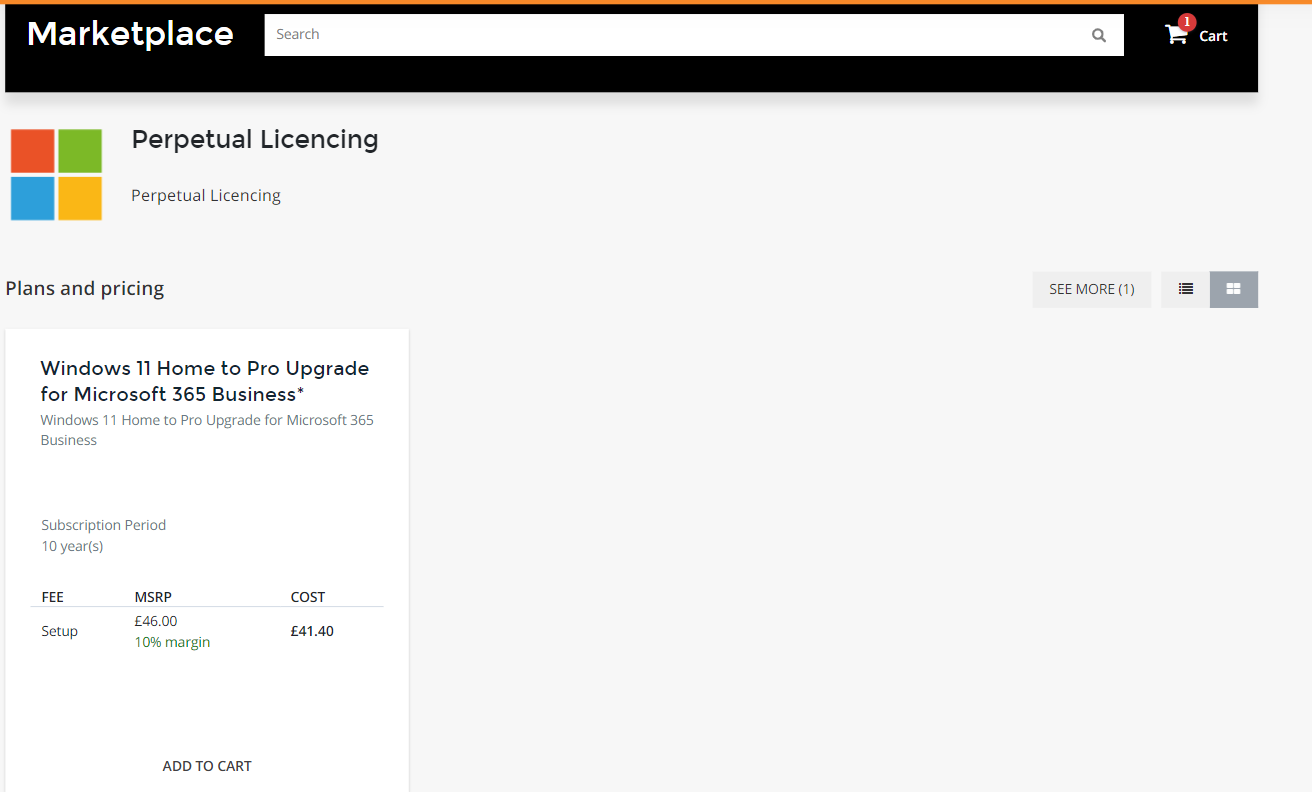
1. Select Marketplace from the list of options on the left-hand side.
2. Once on the Marketplace tab, you can either search for the required plan or select the Perpetual Licensing category and click 'See All'


3. Once you have located the plan that the customer wants to purchase, hit add to cart and then click on the cart icon in the top right-hand corner.
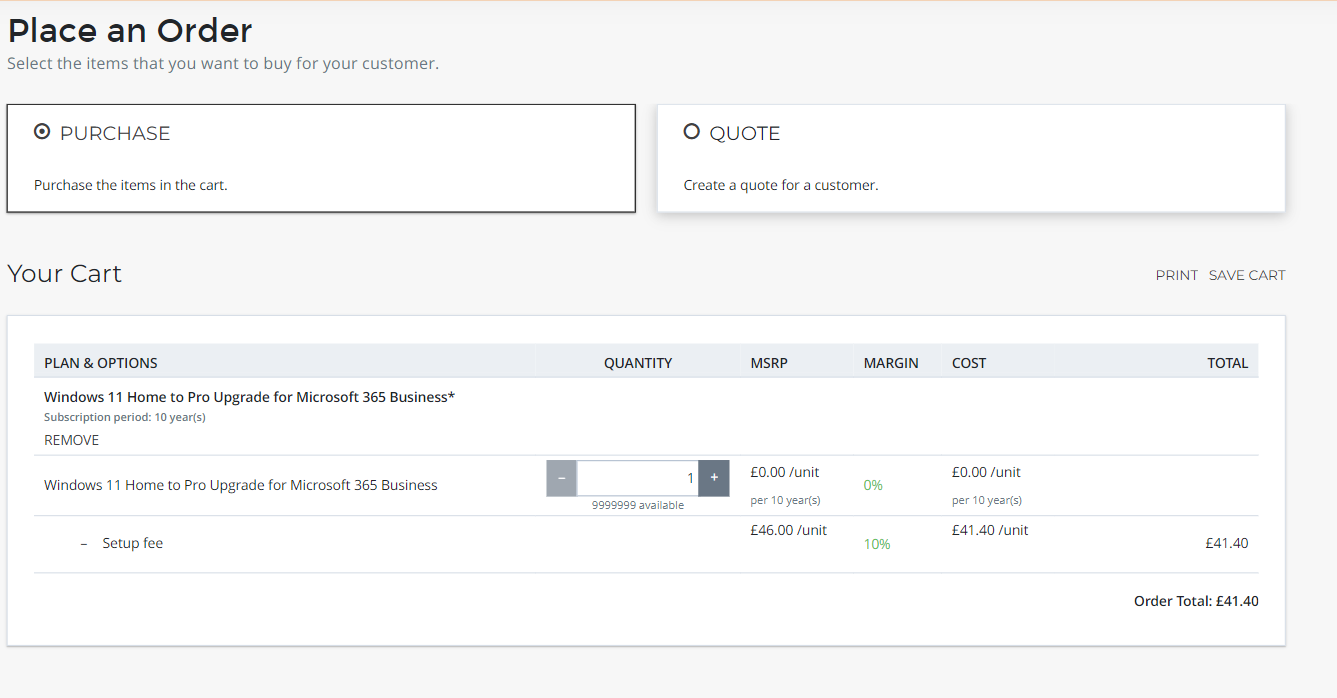
4. Select the Quantity and hit next.
5. Select the Customer from the list or you can search for them at the top.

6. On the next screen, you will either be asked to confirm the customer tenant (if the customer already has services) or enter the .onmicrosoft.com domain for a new tenant (if the customer does not already have services). Enter or confirm the information and hit next
7. You will be shown everything about the order, the subscription, the quantity of licenses selected, the price, and reseller pricing. Once happy this is correct click Buy at the bottom of the screen.

8. Please allow the order some time to process. Whilst this can sometimes take longer the order should only take between 20-30 minutes to complete. You can log in as the customer > Account > Subscriptions and check if the subscription is now showing as active. If so, you can log in as the customer's office 365 global admin account to portal.office.com to find the license keys. The link will explain where you need to go: https://docs.microsoft.com/en-gb/microsoft-365/admin/setup/download-software-licenses-csp?view=o365-worldwide.